
Change the Scheduled program time parameters dynamically from visualization
Example: Dynamically change the Scheduled program time parameters from LM2 visualization
Task
How to allow end-user to change time from visualization system (so he doesn’t go into scripting) when the shutters are opened in the morning and when closed in the evening.
Create objects
- Create 3 objects:
– Scheduler start time (type: 10. 3 byte time / day)
– Scheduler end time (type: 10. 3 byte time / day)
– Control object e.g. shutters (type: 1. 1 bit boolean)
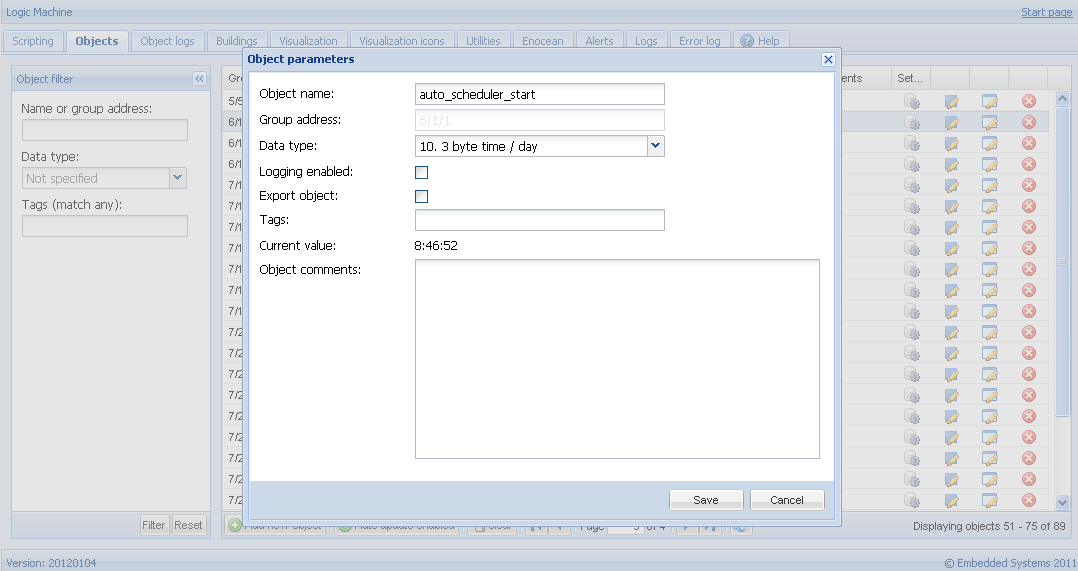
User function library program
Add following code to Scripting -> Tools -> User Function Library:


- function matchdate(now, obj)
- -- get object value
- local odate = grp.getvalue(obj)
- -- check hour and minute parts, seconds are ignored
- return type(odate) == 'table' and now.hour == odate.hour and now.min == odate.minute
- end
-
- function scheduler(startobj, endobj, ctrlobj)
- -- current date as table
- local now = os.date('*t')
-
- -- check schedule start
- if matchdate(now, startobj) then
- grp.write(ctrlobj, true, dt.bool)
- end
-
- -- check schedule end
- if matchdate(now, endobj) then
- grp.write(ctrlobj, false, dt.bool)
- end
- end
Scheduled program
Create scheduled script that runs every minute.
- scheduler("auto_scheduler_start", "auto_scheduler_stop", "shutters1")
Launching objects from visualization
Day is not checked in this example, only Time value.
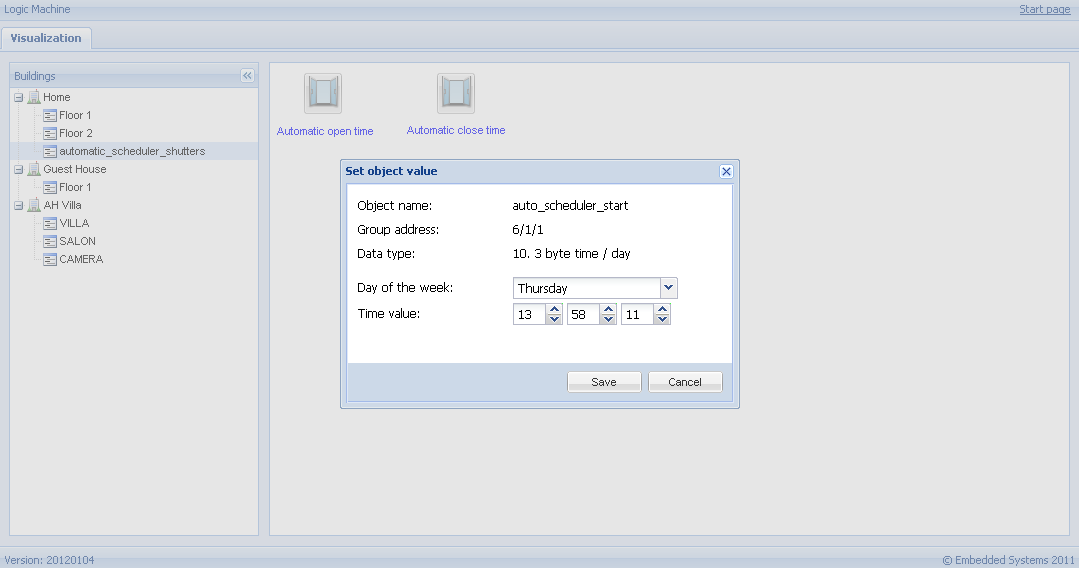
More complex logic on event
- We can create an Event-based script for control of the object which can execute more complex logic for example:
– Morning: open shutter1 on 50%, shutter2 – 100%
– Evening: leave shutter1 opened on 10%, shutter2 – fully closed
- value = cnv.decode(event.datahex, dt.bool)
- -- scheduler start
- if value then
- grp.write('dimmer 1', 50)
- grp.write('dimmer 2', 100)
- -- scheduler end
- else
- grp.write('dimmer 1', 10)
- grp.write('dimmer 2', 0)
- end